
How Do I Create or Edit Images with AI in WordPress?
Assistini provides two AI-powered tools for image generation:
1) The Image Creator helps you to automatically create new images for your posts and pages, from your existing content or an additional prompt. Here are a few tips to help you get the best results:
• You can choose whether to use powerful AI engines like GPT-Image or Gemini for image generation.
• Subject: What should be shown (e.g., “a glass jar of pear-cashew spread”). If you check “Use Post Content”, Assistini will automatically use your post’s text as the image description.
• Art Style: Select your preferred style from the drop-down menu (for example, “Photorealism” produces life-like images with realistic lighting and perspective).
• Composition: Camera angle, perspective, background, and layout.
• Details: Use the “Custom Style” box to define specific design rules. You can also save or select your favorite custom styles for future use. Colors, textures, lighting, mood, or extra elements (e.g., “coconut flakes sprinkled on top”).
• The more precise and concrete your description, the closer the result will match your vision.
2) The Image Editor helps you to edit your existing images by using a simple text description. To get the best results, specify:
• What to change: Add, remove, replace, or adjust elements (e.g., “add a slice of bread next to the jar”).
• Where to change: Define the exact area if possible (e.g., “top-right corner,” “background only”).
• How to change: Style, size, color, or effect (e.g., “make the background white and brighter,” “sharpen the spread texture”).
• Clear, precise instructions help ensure edits look natural and aligned with your intent.
How does AI image generation work?
First, select the WordPress post for which you want to create or modify an image. Now click the red “Assistini” button in the top bar and select “Image”. From there, you can either generate a new image with the Image Creator or edit an existing one using the Image Editor.
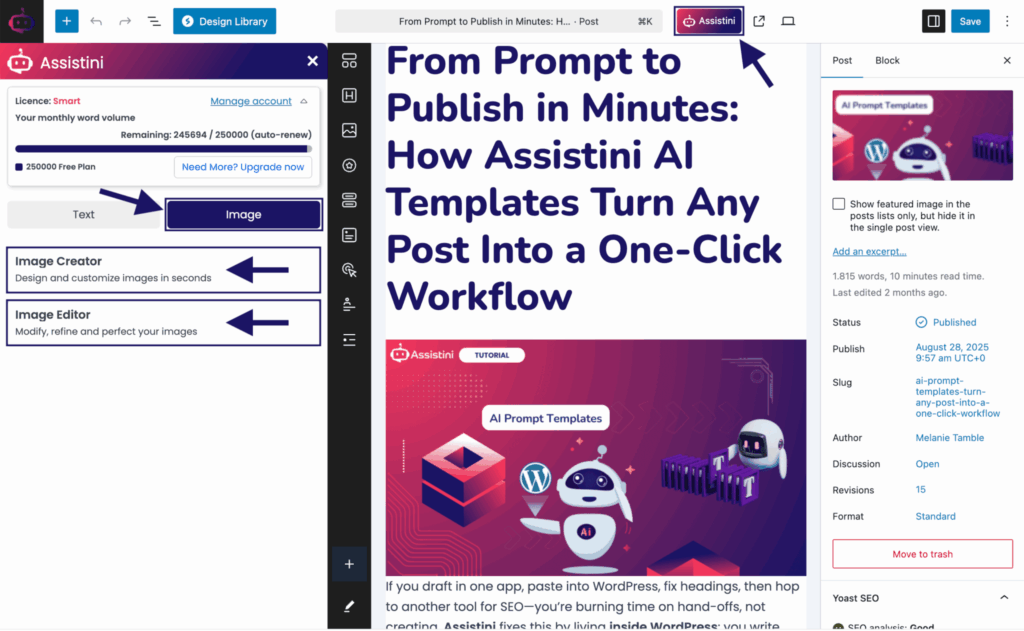
Next, enter a text description or use the text from your post, and Assistini will generate a matching image. Additionally, you can build on your post’s text by adding extra details, and you can specify the size, quality, and output format.
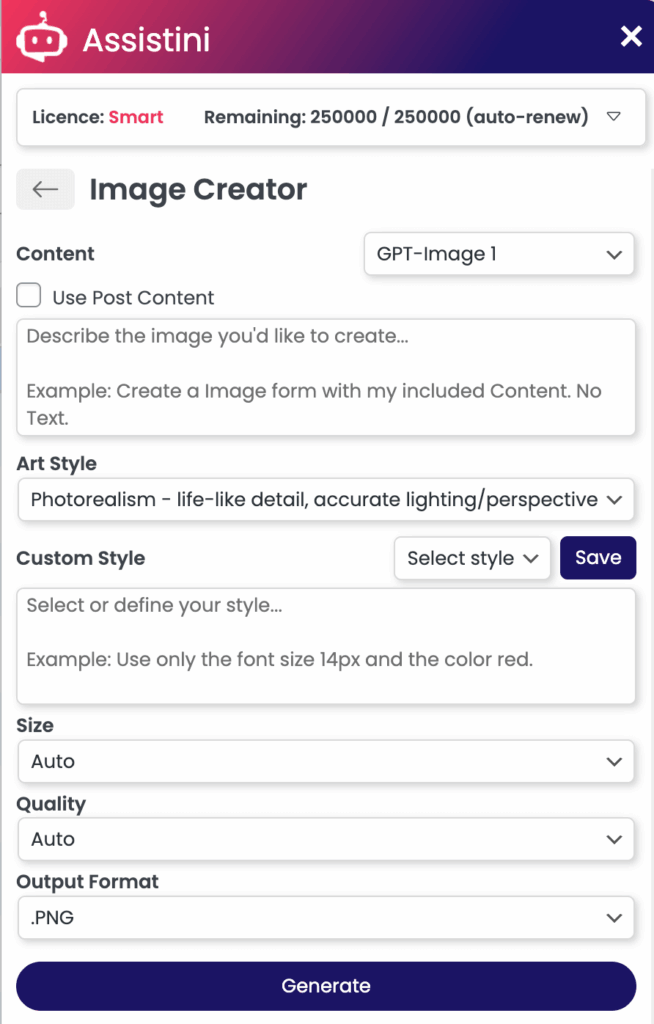
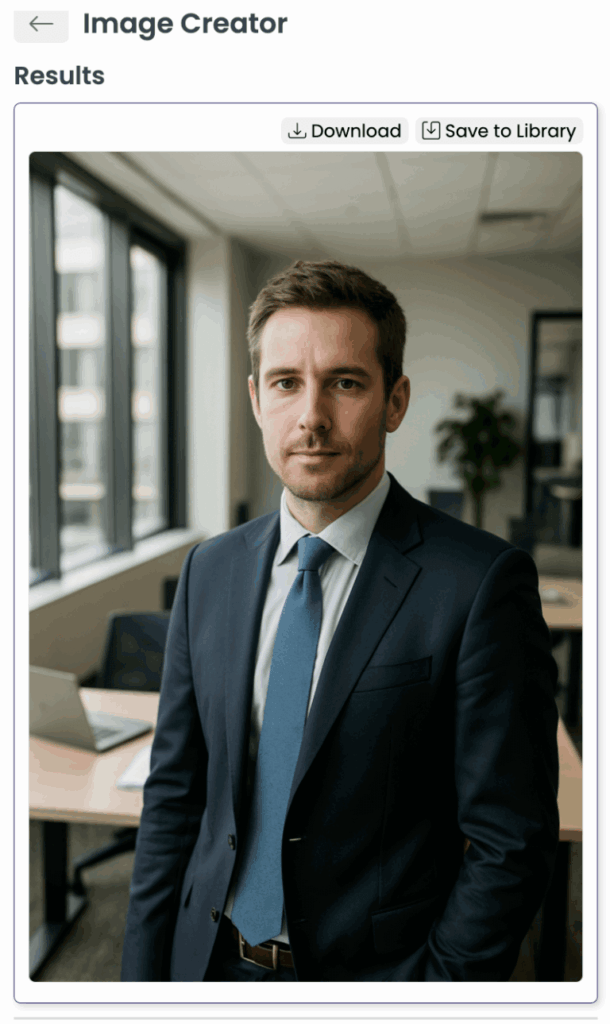
Once the image has been created, you can download it or save it to your WordPress media library.
What makes an effective image prompt?
For the best results, follow these tips:
• Be specific: Include details such as colors, style, and lighting.
• Use this formula: Subject + Style + Details
• Example: “A professional businessman in a modern office, natural window light, photorealistic captured.”
• Stay focused: Avoid overloading with information and concentrate on the key details.
How long does image generation take?
The time required to create or edit an image varies depending on complexity. Please keep the window open until your finished image is displayed.
For a deeper dive and practical applications, read the full post here:
From Idea to Visual: AI Image Creation in WordPress